Fix it like a document
Click any word to jump the player there. Select a passage to edit its text, change its speaker, or delete it, which cuts that moment from the video.
How the Transcript panel works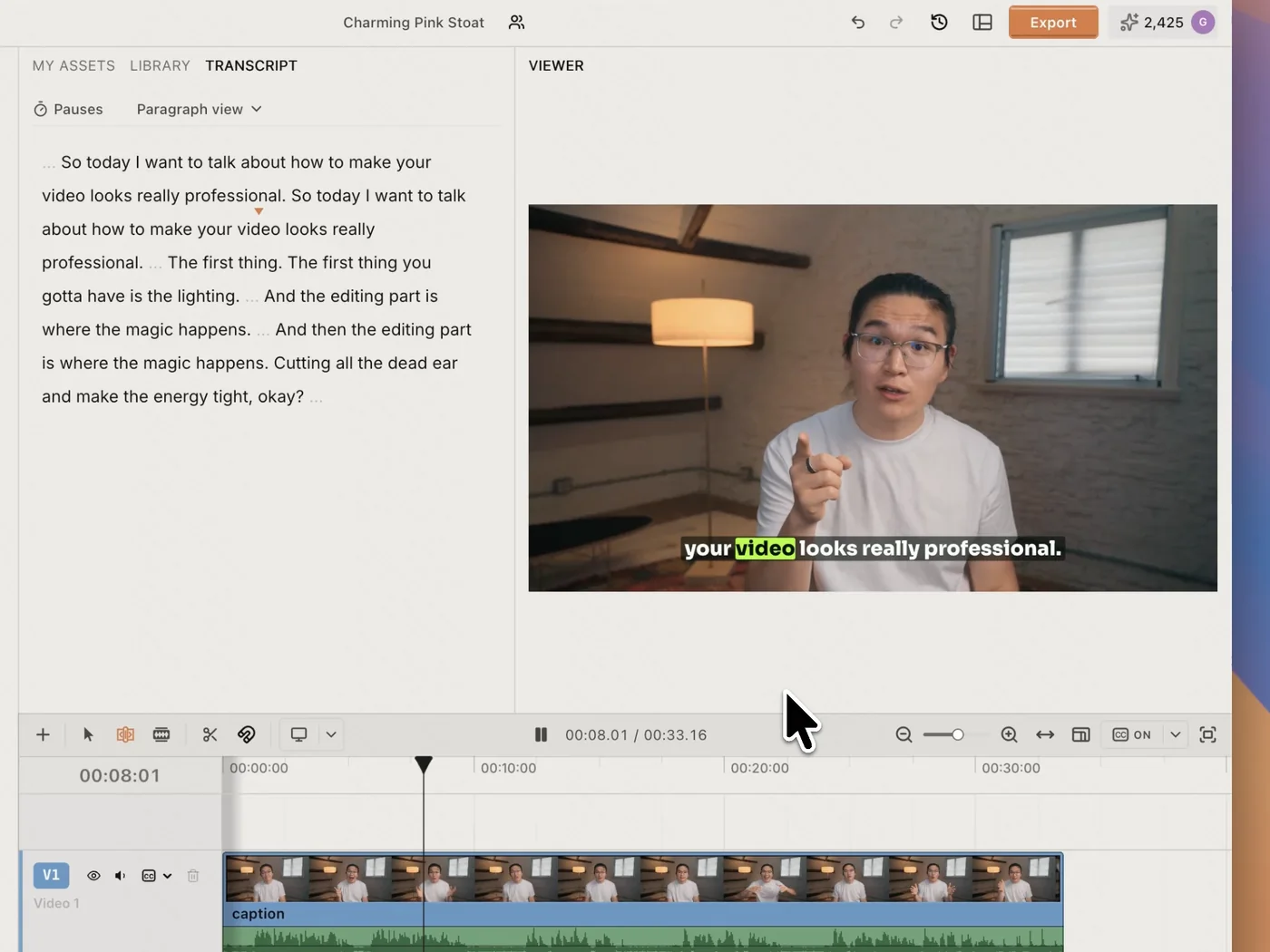
Upload a video and ChatCut turns its speech into an editable transcript, timed to every word. Transcription uses no credits.
Free account · MP4, MOV, WebM, MP3, WAV and more · TXT or SRT out







Trusted by 400,000+ creators
Four steps in the ChatCut web app, and none of them use credits.
Sign in with Google or a one-time email code. The web app runs in your browser.
In My Assets, select Upload, pick a video or audio file, and drag it onto the timeline.
Select Captions in the playback controls. When transcription finishes, read the text in the Transcript panel.
Open Export → Subtitles and choose plain text (.txt) or SubRip (.srt).
Rather not click through it? Transcribe in ChatCut opens a project where the Agent asks for your video and does the steps. Agent messages use credits.
The transcript stays tied to the video, so you can fix it, cut with it, caption with it and translate it.
Click any word to jump the player there. Select a passage to edit its text, change its speaker, or delete it, which cuts that moment from the video.
How the Transcript panel works The same words become timed captions on the video. Pick a style such as Netflix or TikTok Pop, then color single words.
Add captions to your video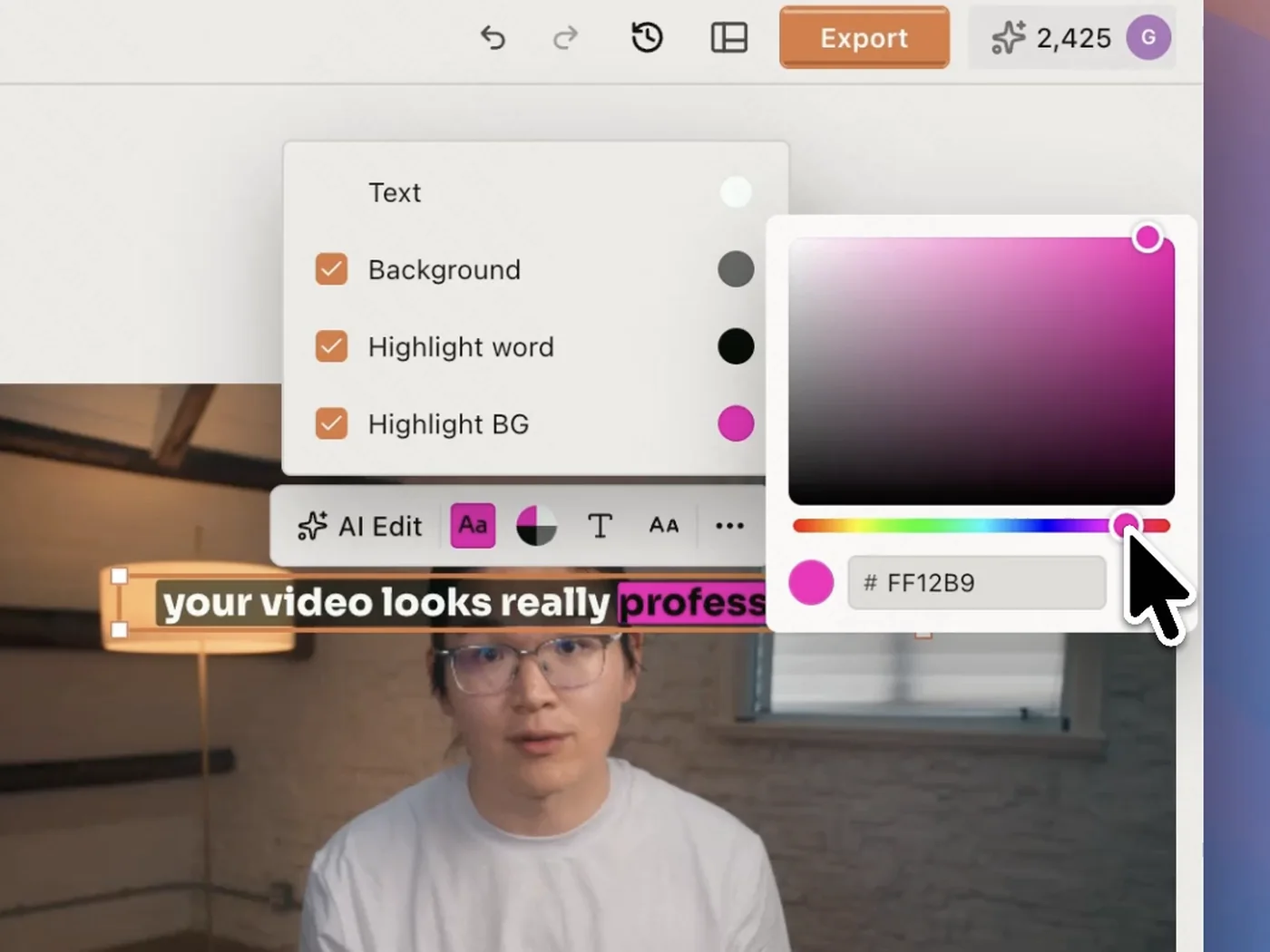
Choose Translate captions and a language. The translation lands on its own track, so you can style and export it separately.
Translate captions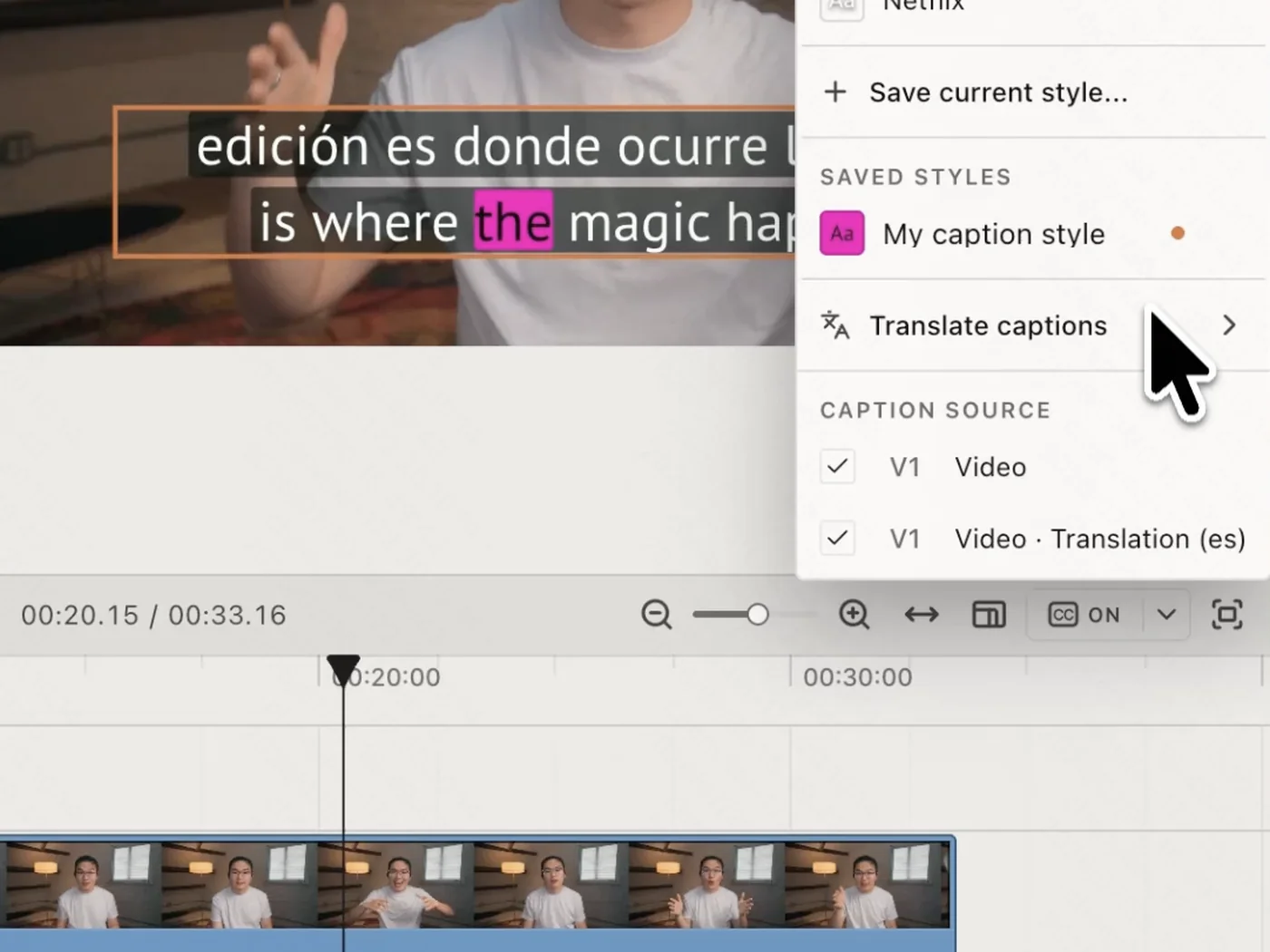
Export → Subtitles saves the active caption track as plain text for notes and articles, or as an SRT file for YouTube and other players.
Export video, audio and subtitles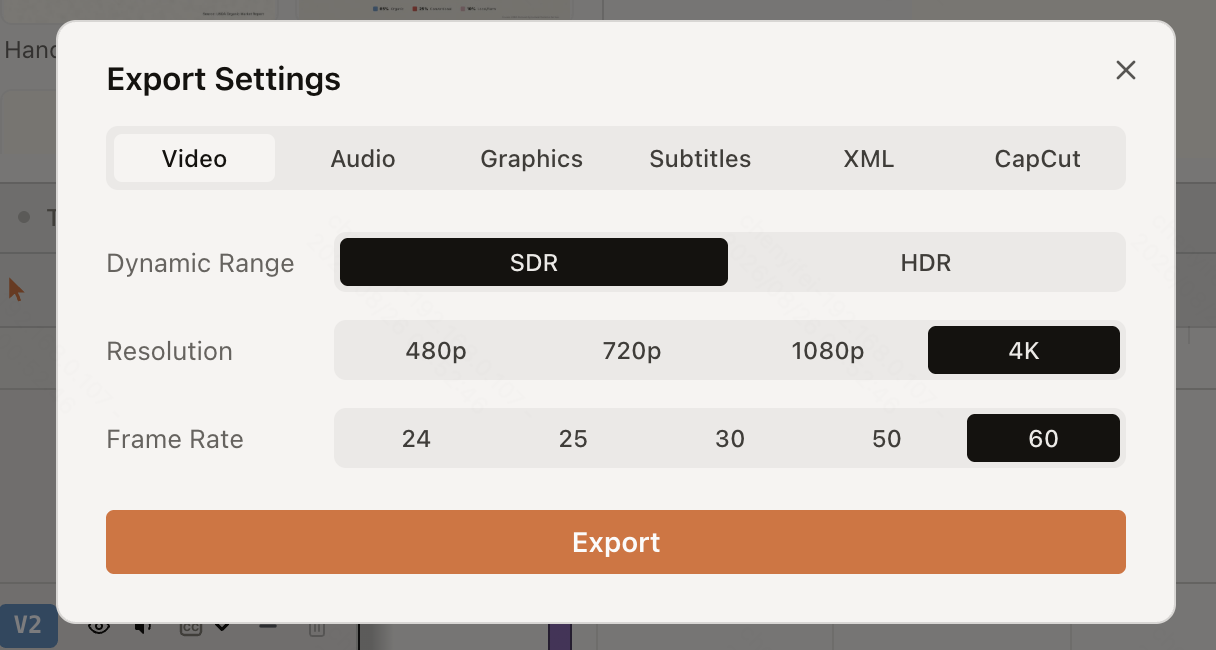
Common video and audio files in, plain text or subtitles out.
Unlock member features, models, and export allowances. Get more credits every month
No credit card required
Free starter allowance
Try for free$252 · Billed annually
100 credits / month
Get started$456 · Billed annually
200 credits / month
Get started$1692 · Billed annually
800 credits / month
Get startedYes. Transcription, uploads, caption editing and exporting a TXT or SRT file don't use ChatCut credits; you only need a free account. If you ask the ChatCut Agent to do the steps for you, which is what the Transcribe in ChatCut button sets up, Agent messages use credits based on usage. Doing the four steps yourself uses none.
Video in MP4, MOV, WebM, MKV, AVI or TS, and audio in MP3, WAV, AAC, FLAC or OGG. For the fewest surprises, use H.264 video in MP4, or WAV or MP3 audio. If a file is recognized but fails, check that it plays locally and convert it to one of those.
Turn on captions and wait until every clip on the active caption track has finished transcribing. Then open Export → Subtitles and choose plain text (.txt) or SubRip (.srt). The file follows the active caption track, so select a translation first if that's the text you want.
Yes. In the Transcript panel, select words and choose Edit text to fix them, or Change speaker to move them to the right person. With captions on, the Content panel also has search and replace. Deleting words in the Transcript panel cuts that part of the video, which is handy for removing mistakes before you export.
The Transcript panel shows speaker labels. Double-click a label to rename the speaker, reassign selected words to someone else, or merge two speakers into one.
Speech is transcribed in the language it's spoken in, including English, Chinese, Spanish and Japanese; other languages keep their wording as transcribed. To publish in another language, translate the captions and export the translation as its own file.
A transcript is the full text of what was said, for reading, searching or pasting into notes, so TXT is the usual format. Captions are the same words split into short timed cards shown over the video; export them as an SRT file or burn them into the video when you export it.
No. ChatCut runs in the browser. There's also a Desktop app for macOS and Windows if you'd rather work with local files.
Keep going: Subtitle generator · Transcript and captions guide · Export subtitles · Supported formats · Get a YouTube transcript · Translate a video

 Codex
 Claude
 WorkBuddy